Cova POS
This will show all of the areas inside of Cova that display on your online Carrot menu. This guide should only be followed by customers using Cova POS
Written by Dayjia · Updated
Classifications
Classifications inside of Cova will appear as subcategories inside of Carrot. Each classification must be assigned to a master category in Carrot.
General
"Long Description" will appear as the online product description on the Carrot Menu
Master Product Specifications
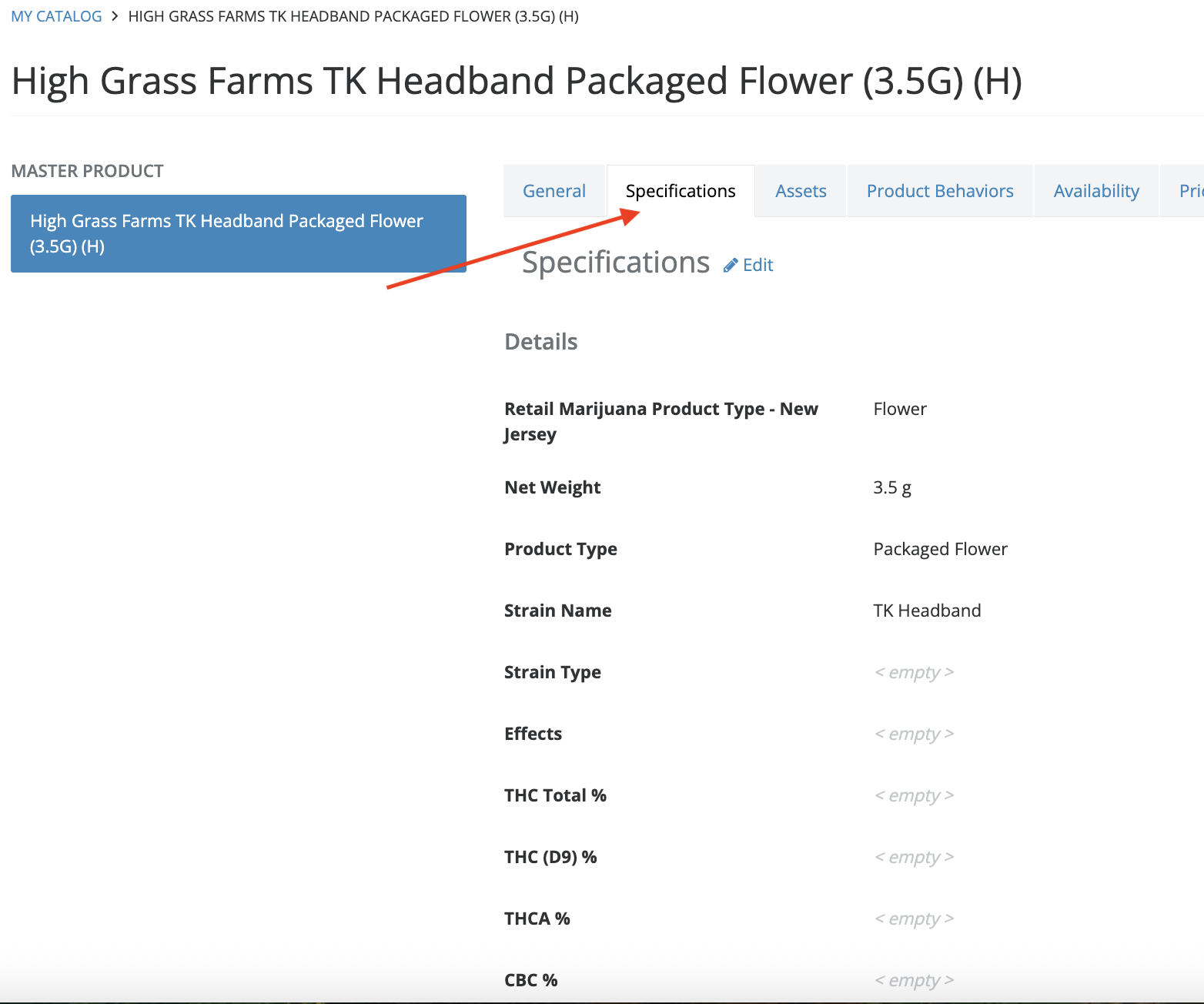
Here are the available specifications in Cova that will appear online (anything not on this list is not functional with Carrot):
Details:
"Strain" or "Strain Type"
This will be used for the "Strain" filter on the Carrot Menu to list sativa, indica, etc.
Net Weight
This is what Carrot will use to determine the weight of the product
THC %
If there is not THC listed under the package details, Carrot will use this field to display the THC
Additional Details:
"Brand" or "Brands"
This will be used for the "Brand" filter on the Carrot Menu
"Tags"
In order to create an "Effect" or "Properties" filter to display on the online menu, you will need to create different tags using this field in Cova. The tags will need to be configured using these formats ":effect:" and ":properties:". Here is an example of how this would be configured in Cova:
:effect:Happy,:effect:Sleepy,:properties:Sugar Free
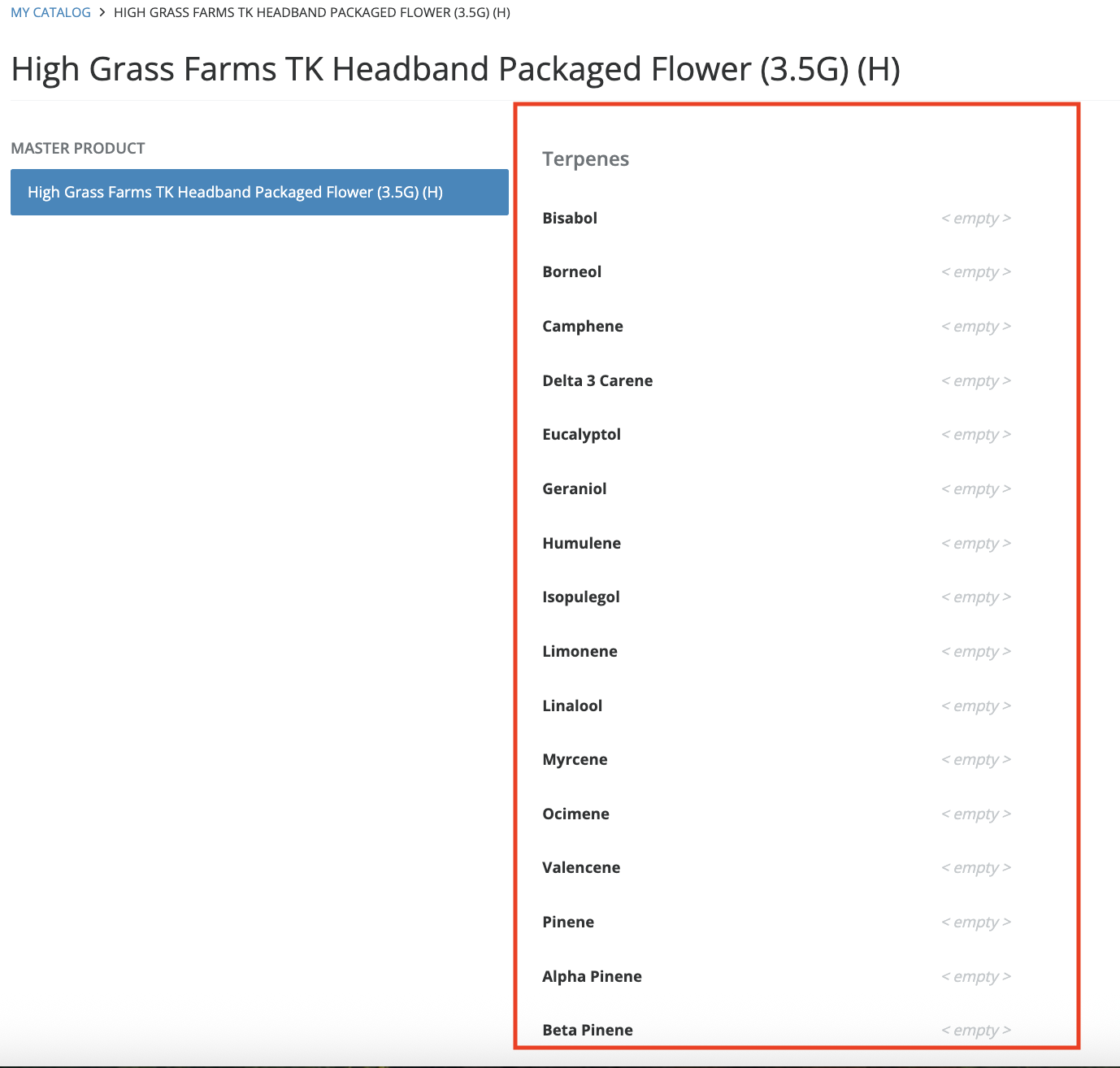
Terpenes
Terpenes will need to be individually listed under the specifications page in order to be shown online under the lab results filter. This may need to be set up by your Cova rep. Here is an example of how it should be configured in Cova:
Assets
Any photos uploaded here will show as the product photo online
Pricing
"regular price" is what will display online for pricing. "sale price" will not display. All sales need to be configured inside of Carrot using the promotion tool
Availability and Package Details
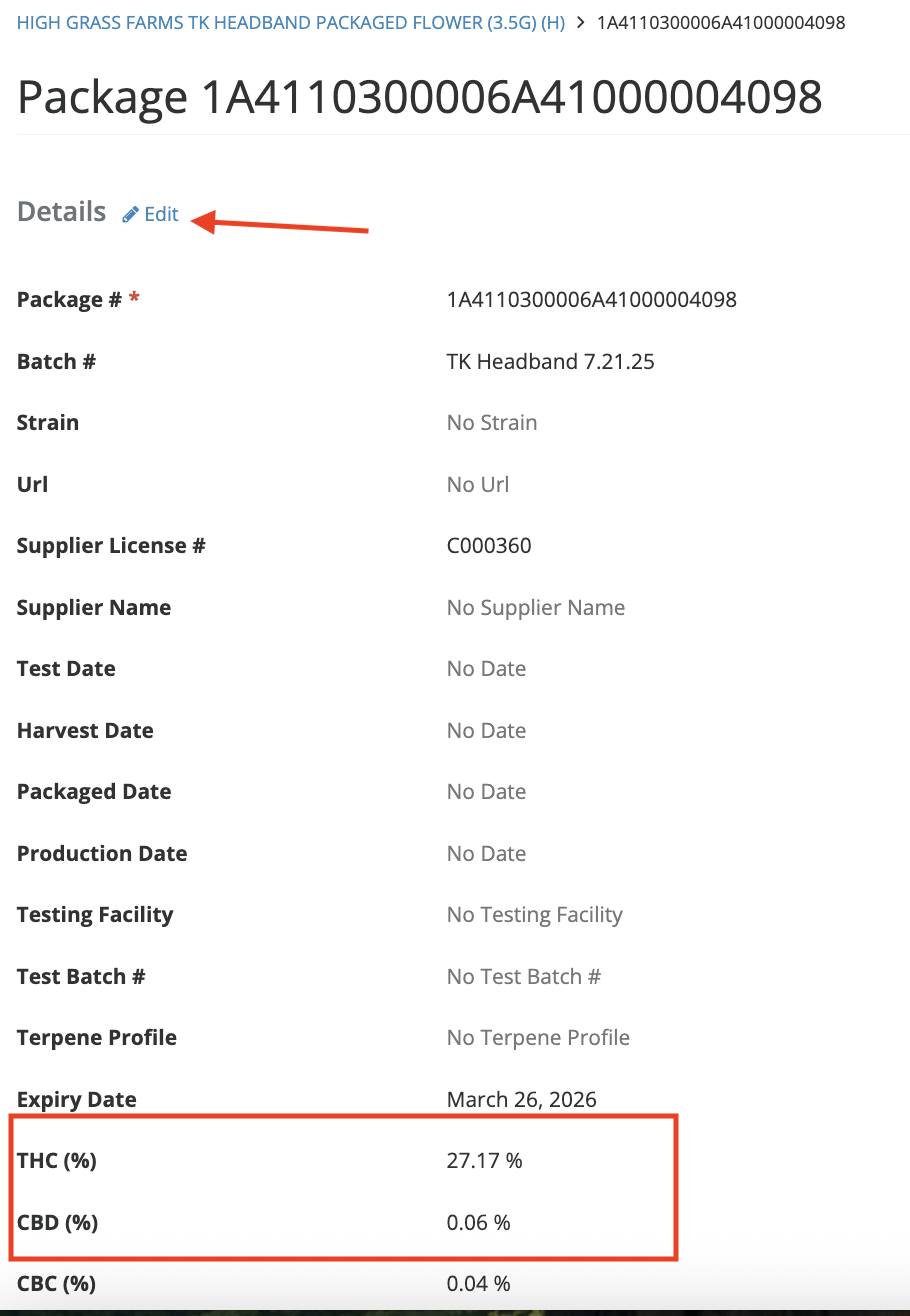
Carrot will look under package details first for THC and CBD lab results. To access package details, click on availability and the package number will appear. Click on that package number to open the details

Online Order Close Out
Carrot orders that have been pushed to Cova complete themselves in Carrot once the sale is finished in Cova, so there's no need to click the green check mark on the order card. If the order was paid online, capture the payment in Carrot first: an order with an uncaptured online payment stays on the board. One Cova-specific note: canceling an order in Cova does not cancel it in Carrot, so cancel it in Carrot as well. See Automatic Order Close Out.
Payment details on orders sent to Cova
Orders that Carrot sends to Cova include a note with the payment method, plus the payment ID for orders paid through Aeropay, Stronghold or Carrotpay. Use it to match the Carrot payment to the sale in Cova.