Fulfilling Pickup Orders In Carrot
How to use Carrot to process in store or cubside pickup orders
Written by Dayjia · Updated
Pickup Orders
Pickup order statuses
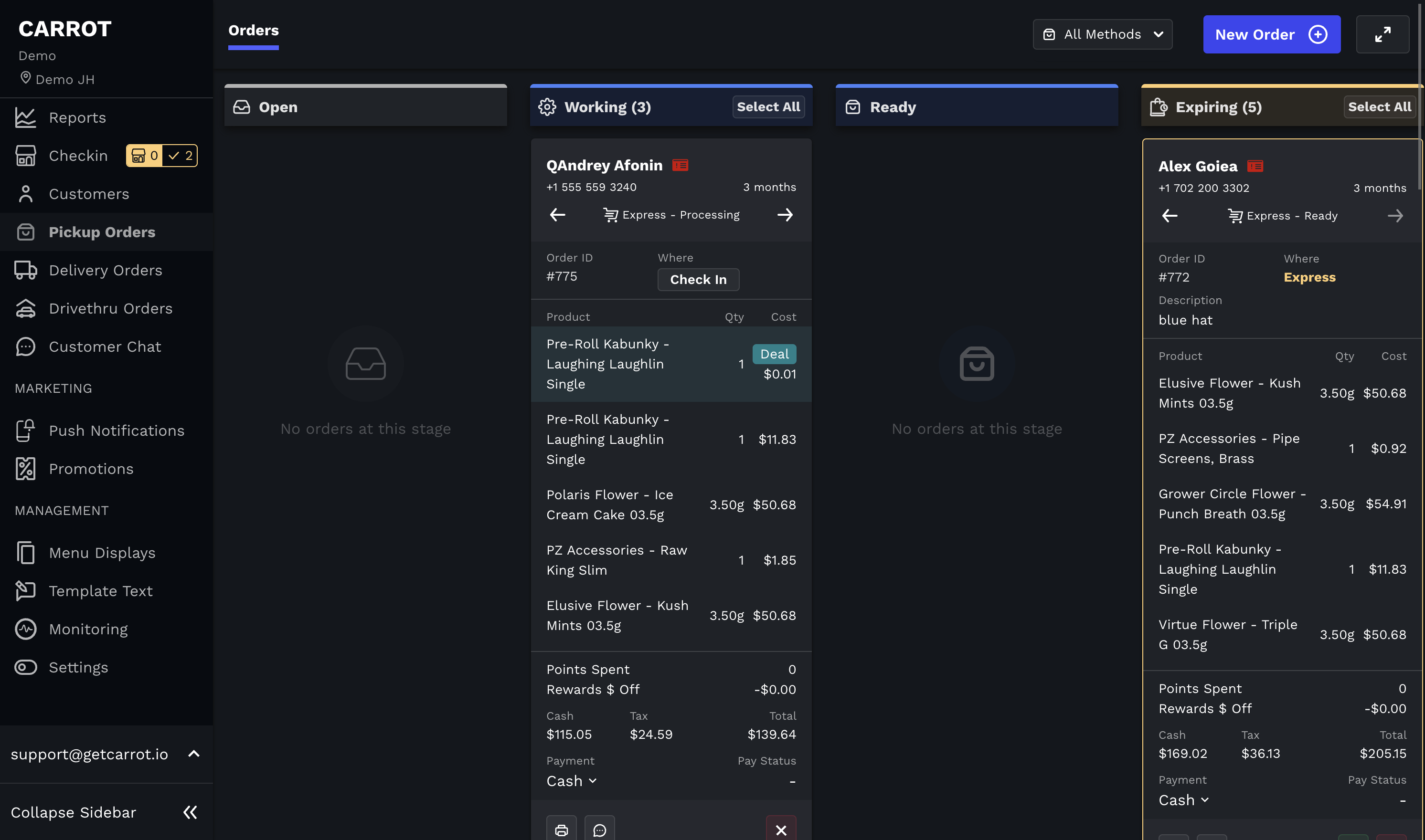
Open
Working
Ready
Expiring
Customer Canceled
When a customer submits an order, it will appear in the "Open" column in the kanban. If you have template texts configured, a trigger text is sent to indicate that the order has been received.
Once a budtender starts working on an order, they should click "Push to POS" to send the order to your POS, and then they should move it to working.
Push to POS is not available with biotrack.
If you would like orders to automatically push to your POS without having to push the button, please ask a support member to enable the feature for you.
This is not recommended. When auto-push is enabled, staff tend to ignore the Carrot Admin, so customers are not responded to quickly and do not receive updates on their order.
Once the order is prepared, it should move to ready. A text is sent to the customer that can be used to let them know to come pick up their order
If you have an expiry window set, orders will move from ready to expiring after the order reaches the set set expiry window
Automatic Close Out
If your store uses Cova, Dutchie, Treez or Forleaf, orders that have been pushed to the POS close out on their own once the sale is completed there, so there's no need to click the green check mark. If the order was paid online, capture the payment in Carrot first: an order with an uncaptured online payment stays on the board. Orders canceled in the POS are canceled in Carrot too (except on Cova). See Automatic Order Close Out.
Order Cards
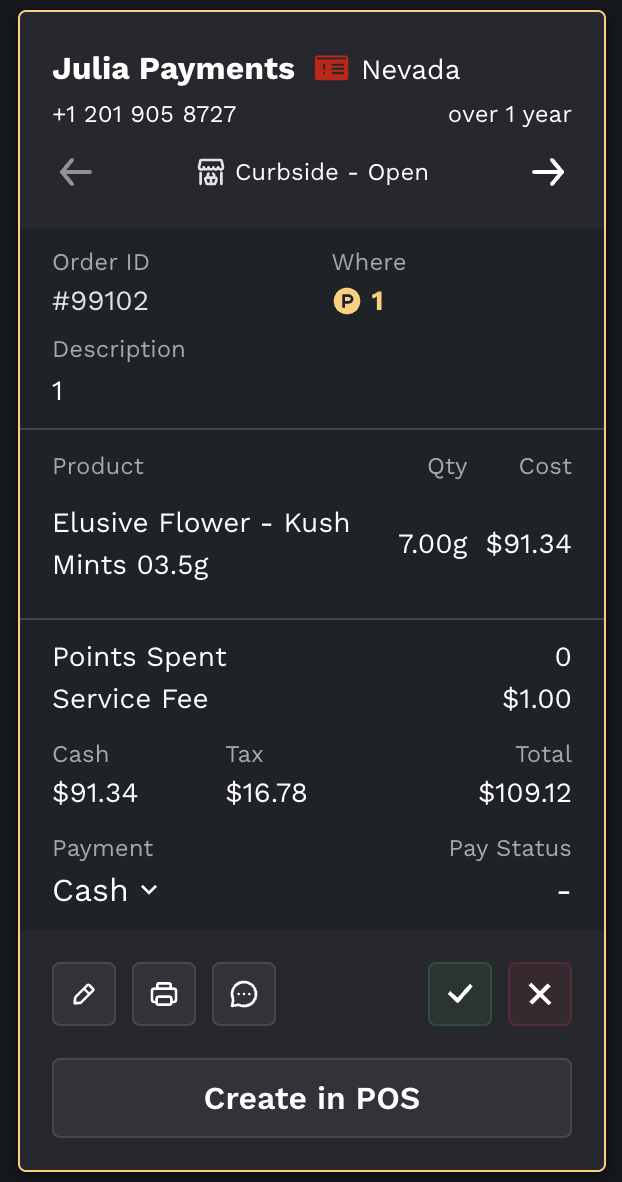
Pickup Cards
|  |
Curbside Pickup Arrival Alert
When a customer scans one of your checkin QR codes to indicate arrival at the store, their order will be highlighted in yellow and will move to the top of the order status list they are currently in. If you need curbside check in QR codes created, please send us an email with the amount of pickup spots needed to support@getcarrot.io