Store Frontpage Editor
Customize your ecommerce within your Carrot platform using Banners, Hero Images (now with multiple rotating slides), Notices and Product Sets.
Written by Dayjia · Updated
The Store Frontpage editor allows you to design your ecommerce homepage using a drag-and-drop interface. Each component can be easily moved and arranged anywhere on the page to create your ideal layout.

Product Set
Product Sets are customizable product carousels — similar to the “Best Selling” sections often featured on storefronts.
After dragging a Product Set into place:
Add a Carousel Title (e.g., “Staff Picks” or “New Arrivals”).
Select the products you want to feature.
Products will appear in the carousel in a randomized order once added.

Banner
After placing a Banner, configure it by adding:
A Title
An Image
(Optional) Alt text for accessibility
(Optional) A link to direct customers to another page
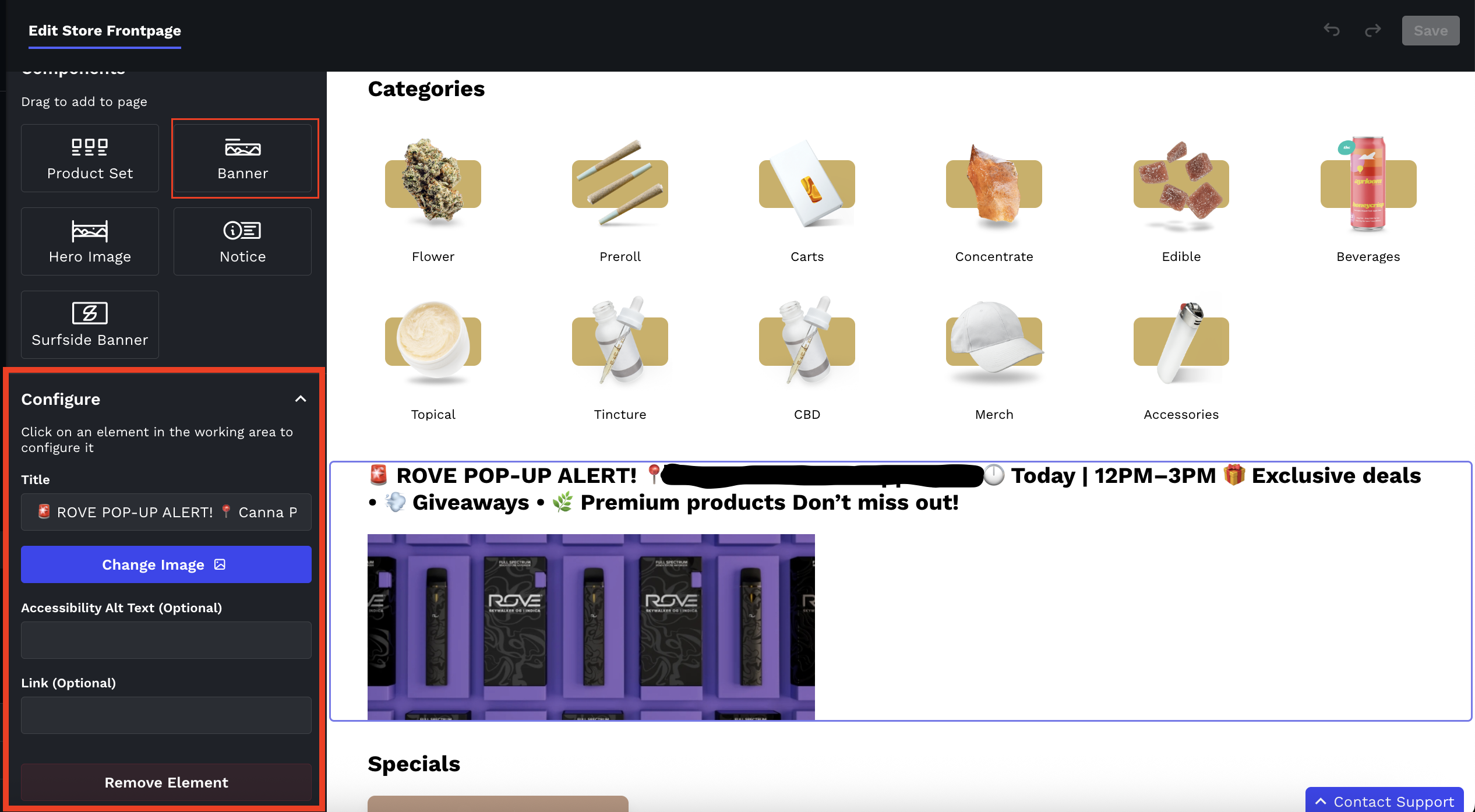
Please note: Banners are limited to one image per placement. To rotate several images, use a Hero Image with multiple slides (below).
Hero Image
A Hero Image is the large image across the top of your store. It can now hold several slides and rotate between them, so you can feature more than one promotion, brand or announcement in the same spot.
Adding slides
Drag a Hero Image onto the page (or click an existing one), then click Add Slide in the Configure panel on the left. Repeat for each slide you want.
Click the pencil on a slide to set it up:
Desktop image: 1600 × 300 px
Mobile image: 800 × 800 px
(Optional) Accessibility alt text
(Optional) A link: clicking the slide takes the shopper there
Drag the handle on the left of a slide to reorder slides, or use the trash icon to remove one.
Click Save at the top right of the editor.

Rotating slides automatically
Click the ⋮ menu next to the Hero Image heading in the Configure panel and choose Edit Settings. Turn on Change slides automatically and set the Slide Change Speed, which is how long each slide stays visible before the next one appears (5 by default).

Good to know: Each hero image you already had has become a single slide, so nothing changes on your store until you add more. Shoppers will keep seeing only the first slide until the online store update for the carousel is released; after that, every slide you've added starts showing.
Notice
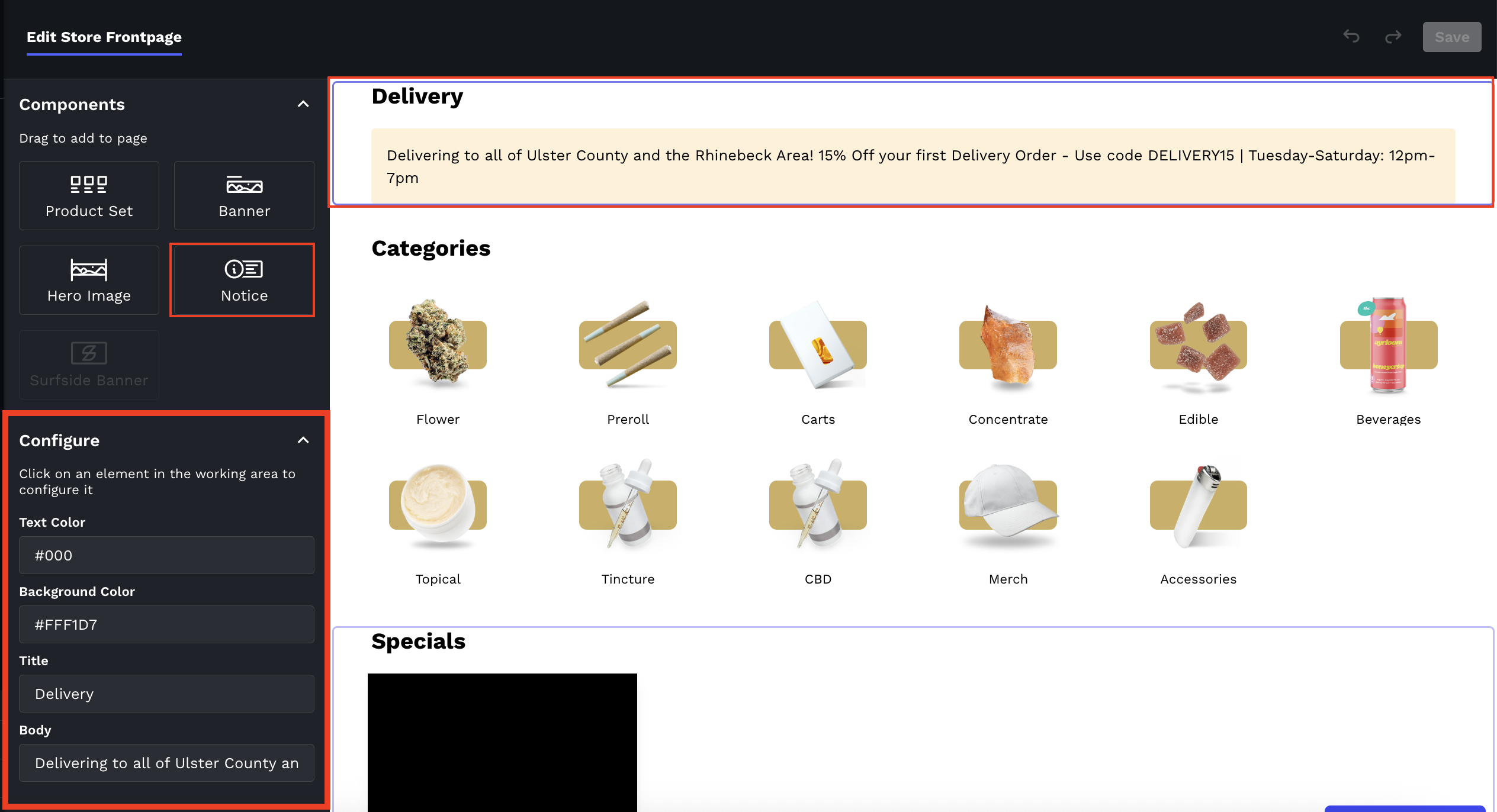
Notices allows you highlight announcements, promotions or updates in your storefront without the need for imagery.
To configure your notice:
Text and Background colors are customizable, but you may leave the default black txt, yellow background.
Add a Title (optional)
Add Body text