Configuring Inventory
Written by Dayjia · Updated
For products to appear on your online menu, you will need to update the category settings to assign them to an online master category. To access these settings, you will need to go to Inventory -> Categories.
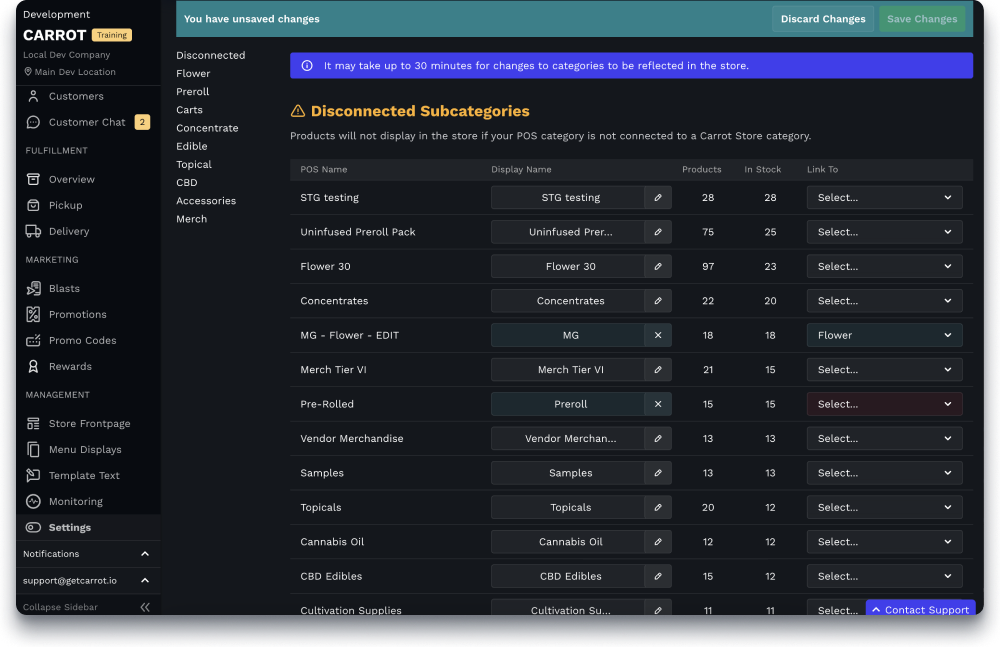
Any categories under "disconnected Subcategories" are not showing on the menu and will need a master category assigned.
POS Name: This is the category name we are receiving from your Point of Sale. All categories inside your Point of Sale are considered "subcategories" inside Carrot.
Display Name: This is the name that will appear under the "subcategories" filter on the store page.
Product: This is how many products are assigned to this category inside your point of sale
In Stock: This indicates the number of products currently in stock in your Point of Sale.
Link to: This is how you assign which online master category this category should belong to. If you need an additional master category added, please reach out to the support team for assistance.